
Overview
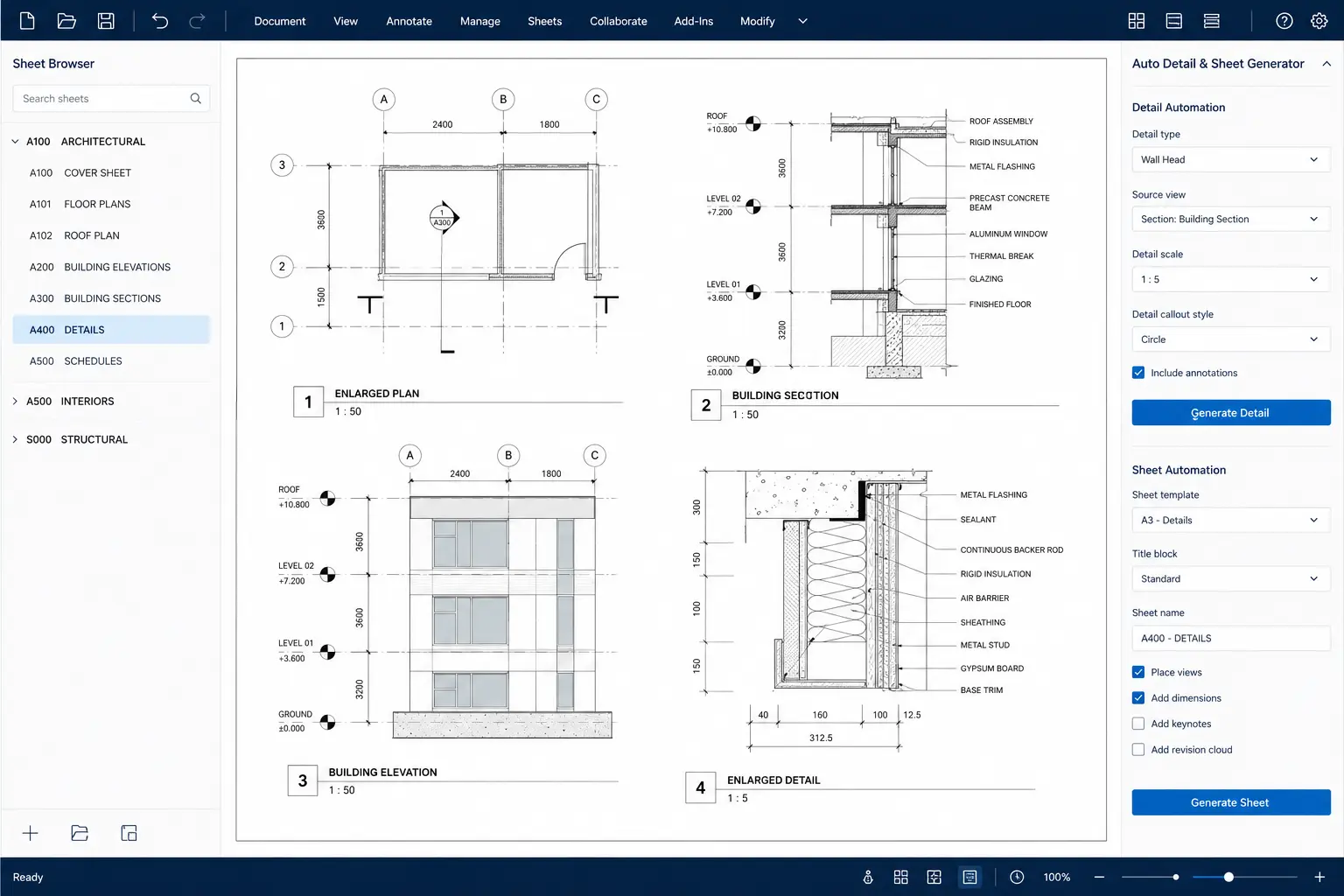
View Automation Toolkit is a Revit API documentation automation add-in originally developed as the BIM Automation Toolkit and Auto Detail Sheet Generator. It uses a selected plan window or Revit Scope Box to define a documentation area, then generates coordinated project views, annotations and drawing sheets around that scope. The tool is designed to reduce repetitive BIM production work while applying repeatable view, annotation, naming, scale and sheet-layout standards. Its workflow covers plan-based views, elevations, sections, optional 3D views, dimensions, element tags, keynote-driven annotations and automatic sheet composition.
Key features
- Window or Scope Box-driven automation — use a picked plan window or selected Revit Scope Box to define the area being documented.
- Automated view generation — create detailed Floor Plans, Reflected Ceiling Plans and Floor Finish Plans.
- Automatic elevations and sections — generate interior elevations, optional exterior elevations, and longitudinal/transverse sections around the selected area.
- Optional coordinated 3D view — generate an isometric view associated with the selected documentation scope.
- Automatic crop control — generated views use the selected documentation area for crop and annotation extents.
- Automated dimensioning — create overall and connected dimension chains using available Revit references for walls, openings, columns and other supported elements.
- Category tagging — automatically tag supported visible model elements inside the selected documentation scope.
- Keynote-driven multi-category annotations — resolve keynote information and populate the Annotations parameter for multi-category tagging.
- Automatic tag positioning — position tags with leaders and spacing logic to reduce annotation overlap.
- Automatic sheet generation — create sheets using the selected titleblock and arrange generated views automatically.
- Configurable scale and detail level — use automatic or user-defined drawing scales with corresponding Revit detail levels.
- Saved project/user settings — retain automation options in JSON so repeated runs can reuse previous settings.
- Automatic naming and sheet numbering — apply controlled view names and sequential drawing-sheet numbering.
- Progress feedback and automatic sheet opening — display generation progress and open the first completed sheet when processing finishes.